
Can Cricut Cut 1/8 Basswood Guide
Many crafters wonder if their Cricut machine can handle cutting a common material like 1/8 inch basswood. It’s a really popular question for folks just starting out with their Cricut and looking to explore beyond paper and vinyl. It can seem a bit tricky to figure out the right settings and techniques to get clean cuts.
But don’t worry! This guide will show you exactly how to make it work, step by step. We’ll cover everything you need to know to successfully cut 1/8 basswood with your Cricut, making your projects easier and more rewarding.
Let’s get started and see what amazing things you can create.
Cutting 1/8 Basswood With Your Cricut
So, you’re curious, can your Cricut cut 1/8 inch basswood? The short answer is yes, with the right machine, blade, and settings! It’s not as simple as just throwing it on the mat and hitting go, but with a little know-how, it becomes totally manageable.
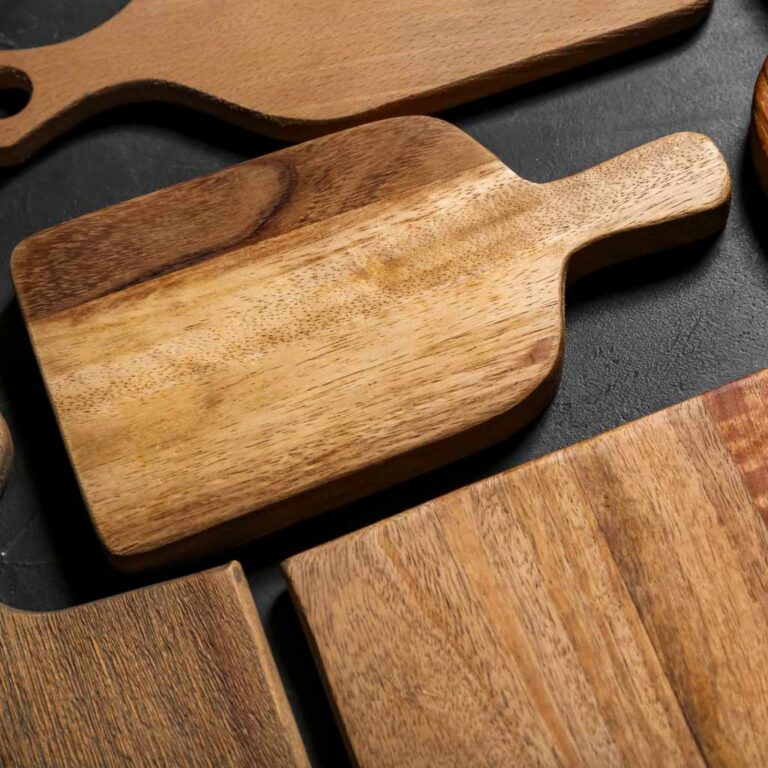
Basswood is a fantastic material for creating sturdy, layered projects, from intricate models to decorative pieces.
Which Cricut Machines Can Cut Basswood?
Not all Cricut machines are created equal when it comes to cutting thicker materials like 1/8 inch basswood. The machines best suited for this task are the ones with more power and the ability to accept stronger blades.
- Cricut Maker and Cricut Maker 3: These are your best bets. They have a stronger motor and can utilize the Knife Blade, which is specifically designed for thicker materials.
- Cricut Explore Air 2 (with limitations): While the Explore Air 2 can sometimes cut thinner basswood (like 1/16 inch or very thin 1/8 inch) with the Deep Cut Blade, it’s generally not recommended for consistent or clean cuts of 1/8 inch basswood. It lacks the power and the specialized blade for reliable results.
- Cricut Joy: The Cricut Joy is designed for smaller, lighter materials like vinyl and cardstock. It cannot cut basswood of any thickness.
If you have a Cricut Maker or Maker 3, you’re in a great position to start cutting basswood. If you have an Explore Air 2, you might need to reconsider this material or look into other cutting methods.
The Right Blade For Basswood
When it comes to cutting 1/8 inch basswood, the blade you use is extremely important. Using the wrong blade will lead to frustration and incomplete cuts.
- Cricut Knife Blade: This is the star of the show for cutting thicker materials like basswood. It’s a specially designed blade that can handle multiple passes and cut through materials up to 2.4mm thick (which is roughly 1/8 inch). The Knife Blade is only compatible with the Cricut Maker and Cricut Maker 3 machines.
- Cricut Deep Cut Blade (for Explore Air 2): As mentioned, this blade can cut thicker materials than the standard blade. However, its effectiveness on 1/8 inch basswood is limited, and it often requires many passes, which can strain the machine and result in a less precise cut. It’s best to use this only if you have no other option and understand the limitations.
Always ensure your Knife Blade is in good condition. A dull or damaged blade won’t cut effectively, no matter how good your settings are.
What You’ll Need To Cut 1/8 Basswood
Beyond the machine and the blade, there are a few other essentials to make your basswood cutting project a success:
- Cricut Maker or Maker 3
- Cricut Knife Blade (if you have a Maker or Maker 3)
- StrongGrip Cutting Mat: Basswood needs to be held down very securely. The StrongGrip mat provides the best adhesion for this purpose.
- 1/8 inch Basswood Sheets: Make sure you are using actual basswood and that it is indeed 1/8 inch thick.
- Cricut Design Space Software: This is where you’ll set up your project and choose your material settings.
- Brayer Tool (Recommended): This helps to ensure the basswood is pressed firmly onto the mat, preventing movement during cutting.
- Masking Tape: You’ll use this to secure the edges of the basswood to the mat, adding extra stability.
Preparing Your Basswood for Cutting
Proper preparation is key to getting clean cuts and avoiding issues.
- Check Your Basswood: Ensure the wood is flat and free from any warping or significant knots that could interfere with the blade.
- Clean the Surface: If there’s any dust or debris on the wood, give it a gentle wipe.
- Secure to the Mat: Place your basswood sheet onto the StrongGrip mat. Use a brayer to press it down firmly. Then, use masking tape to secure all four edges of the basswood to the mat. This is crucial because the Knife Blade can sometimes catch the edge of the material and lift it, ruining the cut.
Setting Up Your Project in Design Space
Design Space is where you tell your Cricut exactly what to do. Getting the settings right for basswood is where the magic happens.
- Upload or Create Your Design: Import your design into Design Space or create one using the tools available. For basswood, simpler designs with fewer intricate details are often easier to cut cleanly, especially when you’re starting out.
- Size Your Design Appropriately: Make sure your design fits within the cutting area of your mat and machine.
- Select the Correct Material Setting: This is the most important step!
- Go to your Project Preview screen.
- Click “Make It.”
- On the Prepare screen, click “Continue.”
- On the “Set Material” screen, search for “Basswood, 1/8 inch.”
- Cricut Design Space will automatically select the correct blade (Knife Blade) and recommended pressure/passes.
- Review Cut Settings: Design Space will usually suggest a number of passes. For 1/8 inch basswood, it often recommends multiple passes (e.g., 10-15 passes). This allows the Knife Blade to gradually cut through the material without excessive force, leading to a cleaner edge. You can adjust the pressure if needed, but sticking to the default is usually a good starting point.
The Cutting Process
Once everything is set up, it’s time to let your Cricut do its thing. Remember, cutting basswood takes patience!
- Load the Mat: With the correct blade installed and the material set, load the mat into your Cricut machine.
- Start Cutting: Press the flashing “C” button to begin the cut.
- Monitor the Cut: Keep an eye on the process. Because it requires multiple passes, it will take a significant amount of time. Resist the urge to stop the machine unless you see a major issue.
- Unload and Check: Once the cutting is complete, unload the mat. Carefully peel away the excess wood from around your design. If the cut isn’t all the way through in some areas, you can carefully use a craft knife or X-Acto knife to finish the cut manually.
Tips for Cleaner Cuts
Even with the right settings, you can improve your results with these tips:
- Use Quality Basswood: Higher quality basswood will be more consistent and easier to cut.
- Don’t Rush the Passes: The multiple passes are there for a reason. Let the machine complete them.
- Flip the Mat: After the first few passes, some crafters find success by gently flipping the mat over (while the wood is still attached) and using a clean brayer on the back of the wood. This can help ensure a clean cut through the entire thickness.
- “Weld” Similar Shapes: If your design has overlapping cuts that are very close, welding them can prevent small, fragile pieces from breaking off during the cut.
- Consider Multiple Thin Layers: If you need thicker wood for a project, it’s often easier and cleaner to cut two 1/8 inch pieces and glue them together than to try cutting a single thicker piece.
- Blade Maintenance: Keep your Knife Blade clean. Wood dust can sometimes clog it.
Troubleshooting Common Issues
What if things don’t go perfectly? Here are some common problems and solutions.
Issue: Incomplete Cuts
Cause: Not enough passes, dull blade, material not securely attached to mat, or wood is too tough. Solution: Increase the number of passes in Design Space. Ensure your Knife Blade is sharp.
Use a StrongGrip mat and tape the edges down securely. Try a different brand or piece of basswood.
Issue: Wood Splintering or Rough Edges
Cause: Blade is too dull, cutting too fast, or wood quality. Solution: Replace your Knife Blade if it’s old or damaged. Ensure multiple passes are set.
Try sanding the edges of the wood before cutting if you’re concerned about splintering.
Issue: Material Lifting Off Mat
Cause: Mat not sticky enough, insufficient taping. Solution: Use a new or refreshed StrongGrip mat. Apply masking tape to all edges of the basswood to secure it firmly to the mat.
Issue: Design Space Not Showing Knife Blade Option
Cause: You might be using a machine that doesn’t support the Knife Blade, or you haven’t selected the correct material. Solution: Ensure you are using a Cricut Maker or Maker 3. Select “Basswood, 1/8 inch” from the material list in Design Space.
Comparing 1/8 Basswood Cutting Across Machines
It’s helpful to see how different machines stack up when it comes to this task.
| Machine | Recommended Blade | Ability to Cut 1/8 Basswood | Notes |
|---|---|---|---|
| Cricut Maker | Knife Blade | Excellent | Designed for thicker materials. |
| Cricut Maker 3 | Knife Blade | Excellent | Similar capabilities to Maker for basswood. |
| Cricut Explore Air 2 | Deep Cut Blade | Limited / Not Recommended | May struggle with clean, consistent cuts. Often requires many passes and can be unreliable. |
| Cricut Joy | N/A | No | Too small and not powerful enough for basswood. |
Frequently Asked Questions
Question: Can I cut 1/8 inch basswood with an Explore Air 2?
Answer: While the Explore Air 2 with a Deep Cut Blade can sometimes cut very thin 1/8 inch basswood, it is not recommended for reliable or clean results. The Cricut Maker series with the Knife Blade is the best option for this material.
Question: How many passes does it take to cut 1/8 basswood?
Answer: Design Space usually suggests between 10 to 15 passes for 1/8 inch basswood when using the Knife Blade. The exact number can vary slightly depending on the wood’s density.
Question: Do I need to tape down my basswood?
Answer: Yes, it is highly recommended. Taping down all four edges of the basswood to the StrongGrip mat with masking tape provides extra security and helps prevent the material from lifting during the multiple cutting passes.
Question: What is the best type of basswood to use?
Answer: For Cricut cutting, look for high-quality, smooth, and uniform 1/8 inch basswood sheets. Avoid pieces with significant knots, warping, or uneven thickness, as these can cause cutting issues.
Question: Can I cut intricate designs in 1/8 basswood?
Answer: Yes, but it’s more challenging. For intricate designs, ensure your wood quality is excellent, your Knife Blade is sharp, and your basswood is extremely well-secured to the mat. Simpler shapes are generally easier to cut cleanly.
Final Thoughts
Cutting 1/8 inch basswood with your Cricut is definitely achievable, especially if you have a Cricut Maker or Maker 3 and the Knife Blade. The key is preparation, using the right tools, and setting up your project correctly in Design Space. Remember to secure your basswood firmly to a StrongGrip mat using tape, and let Design Space guide you through the multiple passes the Knife Blade requires.
While it takes more time and patience than cutting paper, the ability to create sturdy, layered projects with basswood opens up a whole new world of crafting possibilities. Don’t be discouraged if your first attempt isn’t perfect; every cut is a learning experience. With practice and attention to detail, you’ll be crafting impressive basswood items in no time.